
Why Is My Phone on SOS? Causes, Fixes, and What SOS Mode Means
Why Is My Phone on SOS? Learn why your iPhone shows SOS or SOS Only, what it means, and how to fix it. This guide covers iPhone 11, iPhone 12, iPhone 13, eSIM issues, Wi-Fi questions, and why your phone may show SOS even when you have service.
 Dhums
Dhums
Why Is My Phone on SOS?
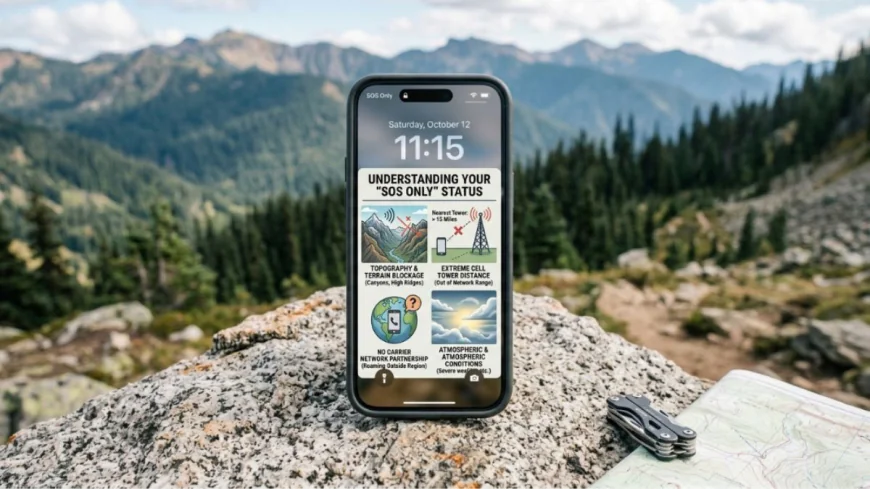
Why is my phone on SOS? If your iPhone suddenly displays SOS or SOS Only in the status bar instead of your carrier's name, it means your phone is not connected to your mobile carrier's network. While you can't make regular phone calls, send SMS messages, or use mobile data, you can still make emergency calls if a compatible cellular network is available.
This issue is common on iPhone 11, iPhone 12, iPhone 13, and newer models, and it can occur for several reasons, including network outages, SIM card problems, eSIM issues, or software glitches.
What Does SOS or SOS Only Mean?
SOS or SOS Only means your iPhone cannot connect to your wireless carrier but can still access another available cellular network for emergency services.
You may notice:
- Carrier name disappears.
- Mobile data stops working.
- Calls fail except emergency calls.
- SMS may not send.
- Wi-Fi continues working normally.
The feature is designed to help users contact emergency services when their own network is unavailable.
Why Is My Phone on SOS but I Have WiFi?
Many users ask, "Why is my phone on SOS but I have WiFi?"
Wi-Fi and cellular service are separate connections.
Even if your Wi-Fi is working perfectly, your iPhone still needs a mobile network for:
- Regular phone calls
- SMS text messages
- Mobile data outside Wi-Fi
- Carrier services
Common reasons include:
- Carrier outage
- SIM card problem
- eSIM activation issue
- Airplane Mode bug
- Weak cellular signal
Your internet may still work through Wi-Fi while the phone shows SOS.
Why Is My Phone on SOS iPhone?
If you're wondering "Why is my phone on SOS iPhone?", the most common causes include:
Poor Cellular Coverage
You're outside your carrier's coverage area.
Carrier Outage
Your network provider may be experiencing temporary problems.
SIM Card Issues
The SIM may be damaged, loose, or improperly inserted.
eSIM Problems
Activation or provisioning errors can place your iPhone into SOS mode.
Software Bugs
Occasionally, an iOS update or temporary software issue may interrupt your cellular connection.
Why Is My Phone on SOS iPhone 11?
Users searching "Why is my phone on SOS iPhone 11?" often experience one of the following:
- SIM card failure
- Network outage
- Outdated iOS
- Carrier settings issue
Restarting the phone and updating carrier settings often resolves the issue.
Why Is My Phone on SOS iPhone 12?
If your iPhone 12 displays SOS, the cause is usually similar to other models.
Check:
- Cellular signal
- Carrier outage
- SIM card
- Carrier Settings Update
- Latest iOS version
Many connectivity problems disappear after updating software.
Why Is My Phone on SOS iPhone 13?
If you're asking "Why is my phone on SOS iPhone 13?", Apple recommends checking:
- Airplane Mode
- Cellular settings
- Carrier updates
- eSIM activation
- Physical SIM condition
If none of these solve the problem, contact your wireless carrier.
Why Is My Phone on SOS When I Have Service?
Some users ask "Why is my phone on SOS when I have service?"
Possible explanations include:
- Temporary tower congestion
- Carrier authentication problem
- Faulty SIM
- Cellular settings corruption
- Network switching issue
Even though nearby devices have service, your individual phone may temporarily lose carrier registration.
Why Is My Phone on SOS eSIM?
eSIM users may experience SOS mode because of:
- Failed activation
- Deleted eSIM profile
- Carrier provisioning error
- Software update interruption
If your eSIM is not properly activated, your iPhone cannot connect to the carrier network.
Contact your carrier if reactivation is needed.
SOS Only on iPhone: How to Fix
If you're searching "SOS Only on iPhone how to fix," try these troubleshooting steps.
Restart Your iPhone
A simple restart often fixes temporary network glitches.
Toggle Airplane Mode
Turn Airplane Mode on for 30 seconds.
Turn it off again.
Wait for the network to reconnect.
Check Cellular Coverage
Move to an area with stronger signal strength.
Underground parking garages and remote locations often have weak reception.
Check SIM Card
Remove and carefully reinsert the SIM card if your iPhone uses a physical SIM.
Inspect it for visible damage.
Verify eSIM
If using eSIM:
- Open Settings
- Cellular
- Confirm the eSIM is active.
If not, contact your carrier.
Update Carrier Settings
Go to:
Settings → General → About
If a Carrier Settings Update appears, install it.
Update iOS
Install the latest version of iOS.
Software updates frequently resolve network-related bugs.
Reset Network Settings
Go to:
Settings → General → Transfer or Reset iPhone → Reset → Reset Network Settings
This removes saved Wi-Fi passwords but often fixes persistent network issues.
Contact Your Carrier
If SOS mode continues after troubleshooting, your carrier can verify:
- Account status
- SIM activation
- eSIM activation
- Network outages
Can You Still Call Emergency Services?
Yes.
SOS mode allows emergency calls when another compatible carrier's network is available.
However:
- Regular calls won't work.
- Mobile data won't work.
- SMS may not send.
- Emergency services should still be available in many areas.
Frequently Asked Questions
Why does my iPhone suddenly say SOS?
Your phone has lost connection to your cellular carrier but may still access another network for emergency calls.
Can Wi-Fi remove SOS mode?
No.
Wi-Fi does not reconnect your phone to your cellular carrier.
Does SOS mean my SIM card is broken?
Not always.
The issue may be caused by your carrier, software, eSIM, or poor signal.
Why does SOS appear after an iPhone update?
Occasionally, software updates require a carrier settings update or network reconnection.
Should I contact Apple or my carrier?
If your SIM and account appear active but SOS continues, contact your carrier first. If the issue persists after carrier troubleshooting, Apple Support may help diagnose hardware or software problems.
Why Is My Phone on SOS?
Why is my phone on SOS? In most cases, your iPhone is unable to connect to your mobile carrier, even though it may still be able to make emergency calls. Whether you're dealing with Why is my phone on SOS but I have WiFi, Why is my phone on SOS iPhone 13, Why is my phone on SOS eSIM, or SOS Only on iPhone how to fix, the issue is often resolved by checking your cellular signal, restarting the device, updating carrier settings, verifying your SIM or eSIM, and ensuring your iPhone is running the latest version of iOS. If the problem continues, your wireless carrier is the best place to start for further assistance.