
How to Fix Phone Screen Unresponsive Touch
How to Fix Phone Screen Unresponsive Touch with this complete troubleshooting guide. Learn why your touchscreen stops responding, how to fix an unresponsive phone screen on Android and iPhone, and when it's time to seek professional repair.
 Dhums
Dhums
How to Fix Phone Screen Unresponsive Touch
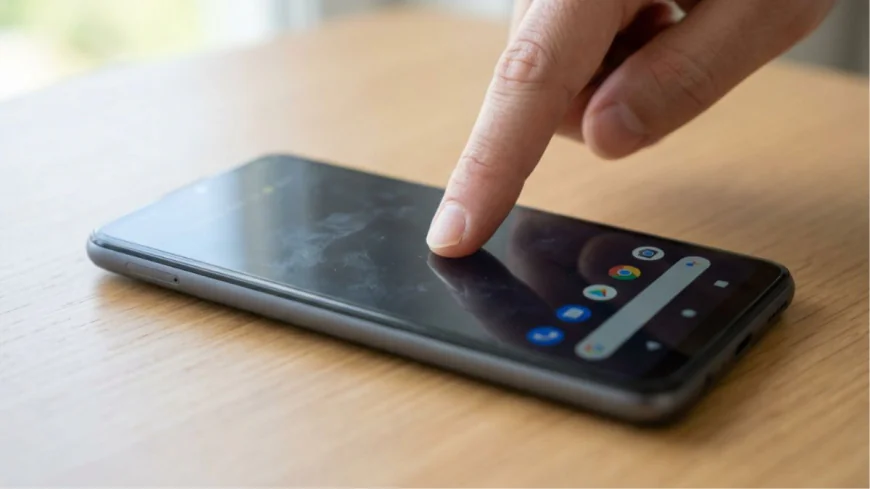
How to Fix Phone Screen Unresponsive Touch is one of the most common questions smartphone users ask when their device suddenly stops responding to taps, swipes, or gestures. An unresponsive touchscreen can be caused by software glitches, insufficient storage, a faulty screen protector, moisture, physical damage, or hardware failure. Fortunately, many touchscreen problems can be resolved without replacing the phone.
Whether you use an Android smartphone or an iPhone, this guide explains the safest and most effective ways to troubleshoot an unresponsive touch screen.
Why Does a Phone Touch Screen Stop Responding?
Before attempting repairs, it's helpful to understand what may be causing the problem.
Common causes include:
- Temporary software bugs
- Low available memory
- Frozen applications
- Outdated operating system
- Damaged screen protector
- Dirt, oil, or water on the display
- Physical impact or cracked screen
- Faulty charging accessories
- Hardware failure inside the display
Identifying the cause makes it easier to choose the right solution.
Restart Your Phone
The first step in How to Fix Phone Screen Unresponsive Touch is restarting the device.
A restart clears temporary software errors that may prevent the touchscreen from working correctly.
If the touch screen is completely frozen:
- Hold the Power button (or the appropriate button combination for your phone) to force a restart.
- Wait until the device reboots.
- Test the touchscreen again.
Many temporary issues are resolved after a simple restart.
Clean the Screen
Dust, fingerprints, moisture, and oil can interfere with touch sensitivity.
To clean your display:
- Turn off the phone.
- Use a soft microfiber cloth.
- Avoid abrasive materials.
- Do not spray liquid directly on the screen.
A clean display often improves touch responsiveness.
Remove the Screen Protector
Poor-quality or damaged tempered glass and plastic protectors may reduce touch sensitivity.
If your phone recently became unresponsive after installing a screen protector:
- Remove it carefully.
- Test the display again.
If the touchscreen works normally afterward, replace it with a high-quality protector designed for your phone model.
Remove the Phone Case
Some rugged or poorly fitting cases can place pressure on the screen edges.
Remove the case temporarily and test the display.
Charge the Battery
A critically low battery may cause unusual device behavior.
Connect the phone to its original charger and allow it to charge for at least 20–30 minutes before testing the touchscreen again.
Update Your Software
Software updates often fix touchscreen bugs.
Android
- Open Settings
- Tap System
- Select Software Update
- Install available updates
iPhone
- Open Settings
- Tap General
- Select Software Update
- Install the latest iOS version
Keeping your phone updated improves stability and performance.
Boot Into Safe Mode (Android)
If the touchscreen only becomes unresponsive while using certain apps, Safe Mode can help identify the problem.
Safe Mode temporarily disables third-party apps.
If the touchscreen works normally in Safe Mode, one of your installed apps may be causing the issue.
Remove recently installed or suspicious applications one at a time.
Free Up Storage Space
Low storage can slow system performance and affect touch responsiveness.
Delete unnecessary:
- Photos
- Videos
- Downloads
- Apps
- Cached files
Maintaining sufficient free storage helps the operating system run smoothly.
Check for Water Damage
Modern smartphones offer varying levels of water resistance, but moisture can still affect touchscreen performance.
If your phone has been exposed to water:
- Turn it off immediately.
- Dry the exterior thoroughly.
- Avoid charging until completely dry.
If problems continue, professional inspection may be necessary.
Inspect for Physical Damage
If your phone was dropped recently, the touchscreen digitizer may have been damaged.
Signs include:
- Cracked display
- Flickering screen
- Dead touch areas
- Random touches (ghost touch)
- Display discoloration
Physical damage usually requires professional repair or screen replacement.
Reset Your Phone
If software problems continue after other troubleshooting steps, a factory reset may help.
Before resetting:
- Back up important data.
- Ensure you know your account credentials.
A factory reset removes personal files and restores factory settings.
How to Fix Android Phone Screen Unresponsive Touch
Android users should additionally:
- Update Google Play System.
- Clear cache for problematic apps.
- Check for manufacturer software updates.
- Restart in Safe Mode.
- Disable recently installed accessibility features if necessary.
How to Fix iPhone Screen Unresponsive Touch
For iPhone users:
- Force restart the device.
- Update to the latest iOS version.
- Remove incompatible screen protectors.
- Check for display damage.
- Contact Apple Support if hardware issues are suspected.
When Should You Replace the Screen?
A replacement may be necessary if:
- Large areas no longer respond.
- The display flickers constantly.
- Ghost touches occur frequently.
- The screen has severe cracks.
- Liquid damage affects touch performance.
Professional repair is often the safest option for hardware-related issues.
Tips to Prevent Touchscreen Problems
To reduce future issues:
- Use a quality screen protector.
- Avoid exposing the phone to extreme temperatures.
- Keep the screen clean.
- Install software updates regularly.
- Use original charging accessories whenever possible.
- Avoid dropping the phone.
These habits can help extend the life of your touchscreen.
Frequently Asked Questions
Why is my phone screen not responding to touch?
Common causes include software glitches, low memory, moisture, damaged accessories, or physical screen damage.
Can I fix an unresponsive touchscreen myself?
Yes. Many software-related problems can be resolved by restarting the phone, cleaning the screen, updating the software, or removing a faulty screen protector. Hardware issues may require professional repair.
Will a factory reset fix touch problems?
A factory reset can resolve software-related touchscreen issues, but it will not repair physical display damage.
Can a cracked screen cause touch problems?
Yes. Cracks may damage the touchscreen digitizer, causing areas of the display to stop responding or register incorrect touches.
How to Fix Phone Screen Unresponsive Touch
How to Fix Phone Screen Unresponsive Touch begins with simple troubleshooting steps such as restarting the device, cleaning the screen, removing a damaged screen protector, updating the operating system, and checking for software issues. If the touchscreen remains unresponsive after these steps, the problem may be hardware-related and require professional repair or screen replacement. Regular software updates, careful handling, and routine maintenance can help keep your smartphone's touchscreen responsive and reliable.