How to Transfer Contacts to a New Phone
How to Transfer Contacts to a New Phone
Moving to a new smartphone does not mean you have to save every phone number again. In most cases, contacts can be moved automatically through a Google or Apple account, while other options include a SIM card, contact file or direct device transfer.
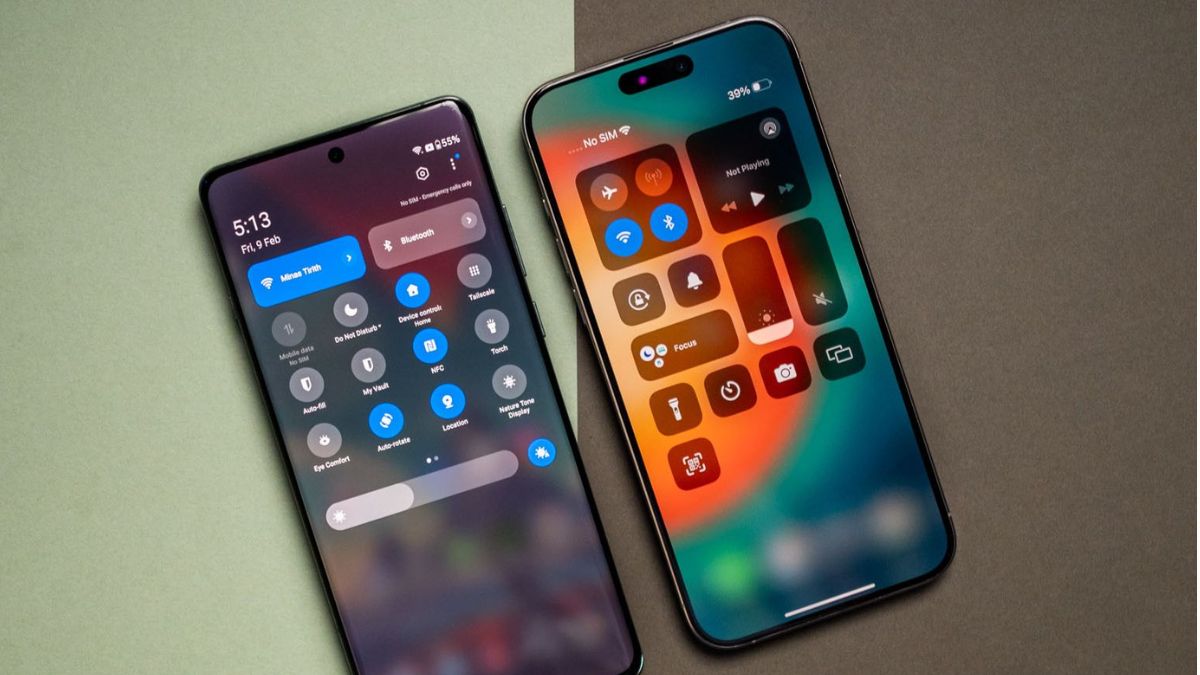
The right method depends on whether you're moving from Android to Android, iPhone to iPhone, or switching between Android and iPhone.
Check Where Your Contacts Are Saved
Before moving anything, check your old phone to see where the contacts are stored.
Contacts may be linked to:
- Google Account
- Apple Account or iCloud
- SIM card
- Phone storage
- Another email account
If possible, make a backup before starting the transfer. Keep the old phone untouched until you have checked the new device.
Transfer Contacts from Android to Android
Google synchronization is usually the simplest option when both phones use Android.
On the old phone, open the account or Google synchronization settings and make sure Contacts is enabled.
Then sign in to the same Google Account on the new phone.
After synchronization, open the Contacts app. Your contacts saved to that Google Account should become available on the new device.
Menu names can vary depending on the Android manufacturer and software version.
Move Contacts from iPhone to iPhone
iCloud can automatically synchronize contacts between iPhones.
On the old iPhone:
Settings → [Your Name] → iCloud → Contacts
Make sure Contacts synchronization is enabled.
When setting up the new iPhone, sign in with the same Apple Account. Once iCloud finishes syncing, open the Contacts app and check your saved numbers.
Transfer Contacts from Android to iPhone
Switching from Android to an iPhone gives you several options.
Use Apple's Transfer Process
If you're setting up the iPhone for the first time, Apple's Android-to-iPhone transfer process can move supported information from the old device.
Follow the instructions shown during iPhone setup and select the information you want to bring over.
Use Google Contacts
If your Android contacts are stored in Google, you can add the same Google Account to your iPhone.
Go to:
Settings → Contacts → Contacts Accounts → Add Account → Google
Sign in and enable Contacts.
Your Google contacts can then be displayed through the iPhone Contacts app.
Transfer Contacts from iPhone to Android
If you're moving from an iPhone to Android, use the data-transfer option provided during the setup of your new Android phone when available.
You can also move contacts through a supported account or import method.
If your contacts are already stored with Google, adding that Google Account to the new Android phone and enabling synchronization may be all that's required.
Transfer Contacts With a SIM Card
Some phones support importing and exporting contacts through a SIM card.
On the old phone, open the Contacts app and look for Import/Export, Manage Contacts, or a similar option.
If SIM export is supported, save the contacts to the SIM, move it to the new phone and select Import from SIM.
However, SIM cards have limited capacity and may not preserve information such as email addresses, multiple numbers or contact pictures.
For a larger contact list, account synchronization is usually more practical.
Move Contacts Using a VCF File
Another option is to export your contacts as a VCF file.
Open the Contacts app on the old phone and look for an option such as:
Contacts → Import/Export → Export to VCF
Save the file and transfer it to the new phone using a computer, USB connection, Bluetooth, Quick Share or another available method.
Open the VCF file on the new phone and choose the option to import the contacts.
This method is useful when you want to keep a separate copy of your contact list.
What If the Old Phone Is Not Working?
You may still be able to recover your contacts if they were synchronized online.
For Android, sign in to the Google Account previously used on the phone.
For iPhone, sign in with the same Apple Account and check iCloud.
If the contacts were stored only on the old phone and the device cannot be accessed, recovery may require professional assistance.
Some Contacts Didn't Transfer
Don't assume the missing contacts are permanently lost.
They may have been stored under a different account or location.
Check whether your old phone had contacts saved to:
- A Google Account
- iCloud
- SIM card
- Device storage
- Another email account
You may need to import contacts from each relevant source.
How to Avoid Duplicate Contacts
Contacts can appear twice if you transfer them using more than one method.
Look for an option such as Merge Contacts, Merge & Fix, or Remove Duplicates in your Contacts app.
Review the suggested matches before combining them.
Can Contacts Be Transferred Without a SIM?
Yes. A SIM card isn't necessary.
You can move contacts through:
- Google synchronization
- iCloud
- Direct phone transfer
- VCF files
- Other supported backup methods
This can be especially useful when switching phones while keeping the same SIM or moving to an eSIM.
Check Everything Before Erasing the Old Phone
Once the transfer is complete, don't immediately factory-reset your old device.
Open the Contacts app on the new phone and search for several important people. Check that phone numbers and other essential details are present.
Only after confirming the transfer should you erase the old phone.
Frequently Asked Questions
How do I transfer contacts to a new phone?
You can use Google or iCloud synchronization, a direct phone-transfer tool, a VCF contact file, or a SIM card if supported.
What is the easiest way to transfer contacts?
For Android users, Google synchronization is generally convenient. For iPhone users, iCloud provides a simple way to keep contacts synchronized.
Can I transfer contacts without a SIM card?
Yes. Contacts can be transferred through cloud accounts, direct device transfers or VCF files without using a SIM card.
How do I transfer contacts from Android to iPhone?
You can use Apple's transfer process during iPhone setup or add your Google Account to the iPhone and synchronize contacts.
How do I transfer contacts from iPhone to Android?
Use the transfer options available during Android setup or move the contacts through a supported account and import method.
Why are my contacts missing after switching phones?
They may be stored in another account, on the SIM card or in the old phone's local storage. Check each location before assuming they're lost.
Bottom Line
Transferring contacts to a new phone is usually straightforward when your contacts are synchronized with an online account. Google Contacts and iCloud are particularly useful because they can make contacts available on another device without manually entering every number.
If cloud synchronization isn't an option, a VCF file or SIM card can provide an alternative. Whatever method you choose, check the new phone carefully before wiping the old one.