Why Is My Phone Showing SOS? Causes and How to Fix It
Why Is My Phone Showing SOS?
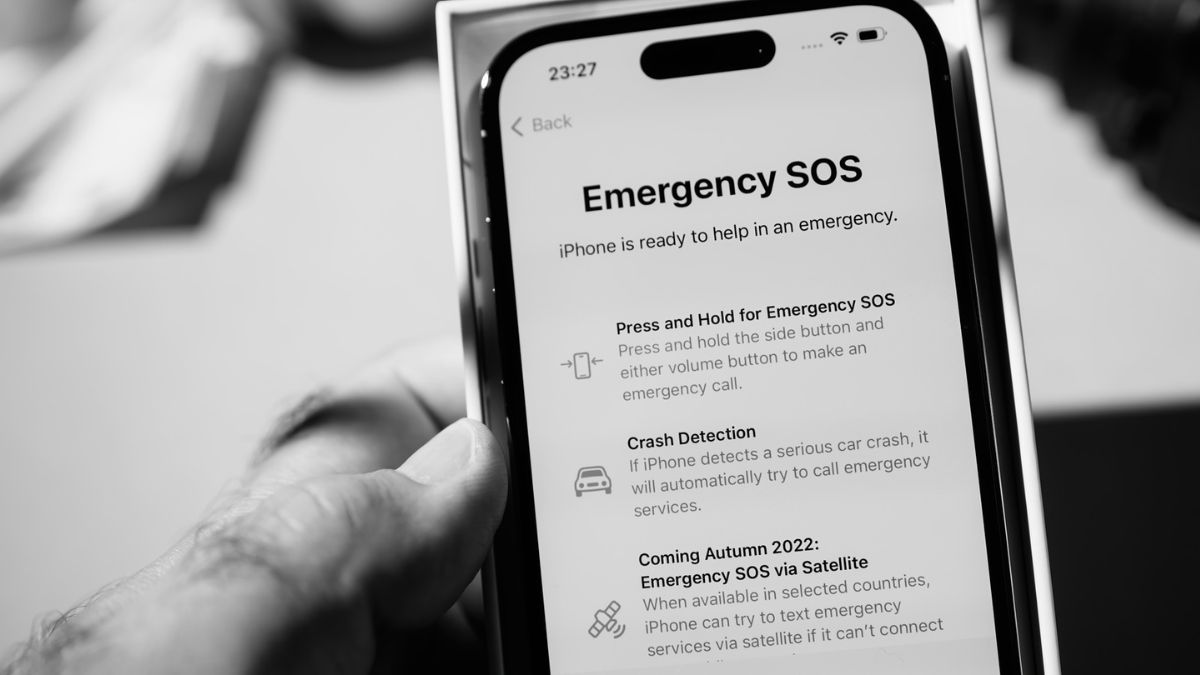
If your phone suddenly shows “SOS” or “SOS Only” instead of your normal mobile network, it usually means the phone cannot connect to your carrier's cellular network. You may still be able to make emergency calls, but normal calls, texts and mobile data may not work.
The good news is that the issue is often temporary and can sometimes be fixed without visiting a repair shop.
What Does SOS or SOS Only Mean?
An SOS message generally indicates that your phone isn't connected to its regular mobile network.
This can happen because of:
- Weak or unavailable cellular coverage
- A temporary carrier outage
- SIM or eSIM problems
- Airplane Mode being enabled
- Network settings issues
- Account or carrier problems
- A damaged SIM card
- Physical damage to the phone
The exact meaning can vary slightly depending on the phone and carrier.
1. Check Your Signal
First, look at your surroundings.
If you're inside a building, basement, elevator, underground area or remote location, the cellular signal may simply be too weak.
Move somewhere with better reception and wait a few moments to see whether the network returns.
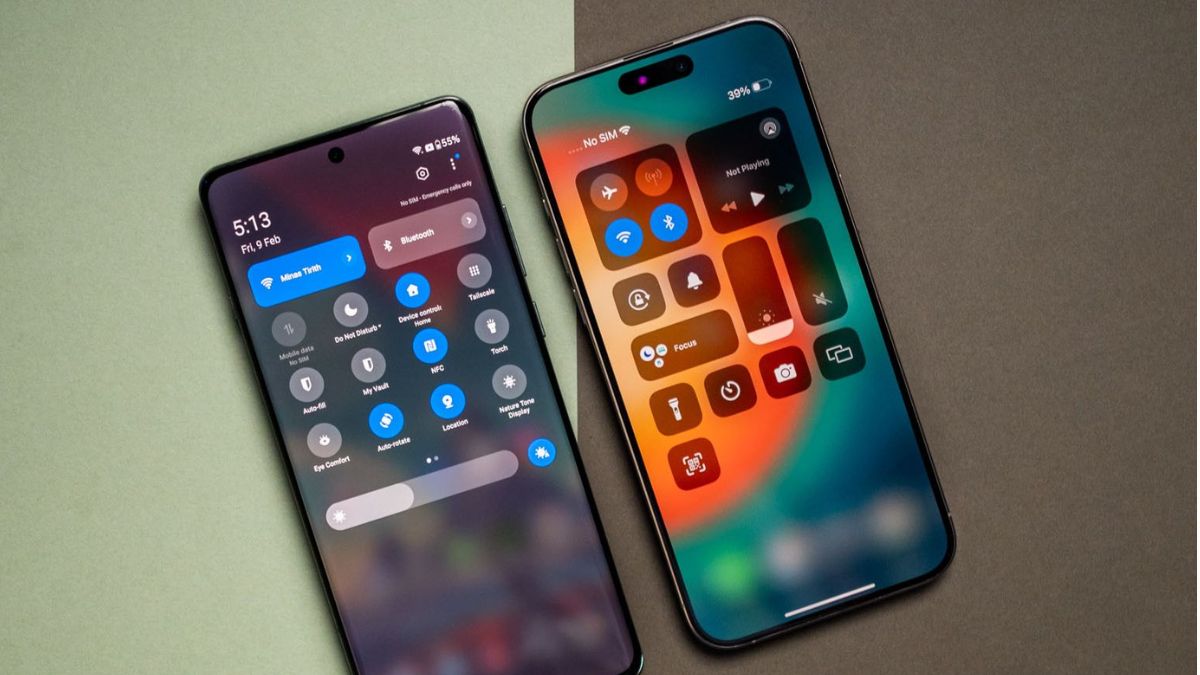
2. Turn Airplane Mode On and Off
This is one of the quickest things to try.
- Open Control Center or Quick Settings.
- Turn Airplane Mode on.
- Wait about 10–15 seconds.
- Turn it off again.
- Give the phone a few seconds to reconnect.
This forces the phone to search for available networks again.
3. Restart Your Phone
A temporary network or software problem can sometimes cause the SOS indicator.
Restart the phone normally and check the signal after it turns back on.
If the phone reconnects to the carrier, the issue was likely temporary.
4. Check Your SIM or eSIM
If you're using a physical SIM, turn off the phone and check that the SIM is properly inserted.
A loose, damaged or improperly seated SIM can prevent the phone from connecting to the carrier.
If you're using an eSIM, check your cellular settings to make sure the mobile plan is still enabled.
5. Check Your Mobile Line
On an iPhone, go to:
Settings → Cellular
Make sure your mobile line is turned on.
If you have multiple SIMs or eSIMs, check that the correct line is enabled.
Android menu names vary by manufacturer, but you can generally find SIM and mobile-network settings under Settings → Network & Internet or Connections.
6. Check for a Carrier Outage
Sometimes your phone is perfectly fine and the carrier's network is experiencing an outage.
If other people using the same carrier near you are also showing no service or SOS, an outage is a likely explanation.
You can check your carrier's official website or support channels for service-status information.
7. Check Your Account
If the problem isn't related to coverage or an outage, your mobile account could be involved.
For example, service may be affected by:
- An unpaid bill
- An expired plan
- A suspended account
- A SIM/eSIM activation problem
- A recently changed mobile plan
Contact your carrier if you suspect an account issue.
8. Install Available Software Updates
An outdated operating system or carrier configuration can occasionally cause connectivity problems.
If you can access Wi-Fi, check your phone for available software updates and install them if appropriate.
9. Reset Network Settings
If the SOS message continues, resetting network settings can sometimes resolve configuration problems.
Keep in mind that this can remove saved Wi-Fi networks, passwords and other network-related settings.
On iPhone, the option is generally under:
Settings → General → Transfer or Reset iPhone → Reset → Reset Network Settings
Android menu names vary by manufacturer, but look for Reset Wi-Fi, mobile & Bluetooth or a similar network-reset option.
10. Check Whether the Phone Was Dropped or Damaged
If your phone started showing SOS after a significant fall, water exposure or other physical damage, the problem may involve the antenna, SIM reader or another internal component.
In that situation, software troubleshooting may not solve the problem.
What If Your Phone Says SOS but Wi-Fi Works?
Wi-Fi and cellular service are separate.
Your phone can connect to Wi-Fi while still showing SOS because it isn't connected to the mobile network.
You may therefore be able to use internet-based apps over Wi-Fi even though regular cellular calls and mobile data aren't available.
Why Does My iPhone Say SOS?
On an iPhone, SOS or SOS Only generally means the device isn't connected to your normal cellular network but may still be able to make emergency calls where supported.
Common causes include poor coverage, carrier outages, SIM/eSIM problems and account issues.
Why Does My Android Phone Say SOS?
On Android, the exact wording depends on the manufacturer and network. An SOS or emergency-only indicator generally means the phone can't establish its normal cellular connection.
Check signal strength, SIM status, network settings and carrier availability.
When Should You Contact Your Carrier?
Contact your mobile carrier if:
- SOS continues for a long time.
- Other phones using the same network work normally.
- Your SIM or eSIM appears inactive.
- You recently changed your plan or SIM.
- Your account may have been suspended.
- Network-reset steps didn't help.
Your carrier can check whether your line, SIM/eSIM and account are properly provisioned.
When Could It Be a Phone Hardware Problem?
Hardware may be the cause if:
- The phone was recently dropped.
- It suffered liquid damage.
- The SIM isn't detected.
- The device repeatedly loses cellular service.
- A known-good SIM also fails in the phone.
A repair technician can check the antenna, SIM reader and other cellular components.
Frequently Asked Questions
Does SOS mean my phone is broken?
No. SOS usually means the phone can't connect to its normal cellular network. A temporary outage or weak signal can cause it.
Can I use Wi-Fi while my phone says SOS?
Yes. If Wi-Fi is working, internet-based services can generally continue to work even when cellular service isn't available.
Will restarting my phone remove SOS?
It can if the problem is caused by a temporary network or software glitch, but it won't fix a carrier outage, inactive SIM or hardware problem.
Why does my phone keep switching between SOS and normal signal?
This can happen when cellular coverage is weak or unstable. It can also indicate a SIM, carrier or hardware issue if it happens frequently in areas with normally good coverage.
Should I reset my phone to factory settings?
Usually, no. A factory reset is a much more drastic step and isn't necessary for most SOS/network problems. Try network troubleshooting first.
Bottom Line
If your phone is showing SOS, don't assume that the device is broken. Start by checking your signal, toggling Airplane Mode, restarting the phone and checking your SIM or eSIM.
If the problem continues, investigate a possible carrier outage or account issue. If SOS remains despite good coverage and a working SIM, your carrier or a qualified repair technician can help determine whether there's a network or hardware problem.